Sections
Learn about every section type available in the editor and how to add, configure, and reorder them.
Sections are the primary layout blocks of your pages. Each section is a full-width row that spans the screen and holds columns, grids, and individual elements. A webpage is created by stacking these sections vertically.
Preset vs. Blank Sections
When adding sections to your canvas, you can choose between two main structural approaches:
1. Preset Sections (Variants)
Pre-designed, professional layouts (such as hero splits, testimonials, logo clouds, or contact forms).
- Benefits: Pre-styled for immediate use, fully responsive, and compliant with readability and design ratios.
- Editing: You can edit the text, swap images, change background colors/gradients, and bind dynamic database collections. The underlying column grid remains locked to preserve the design.
2. Blank Sections
Empty multi-column layouts (e.g., 1-column, 2-column, 3-column, or asymmetric rows).
- Benefits: Provides a blank canvas for complete design freedom.
- Editing: You can add any number of blocks (headings, paragraphs, buttons, etc.) from the Blocks library directly into columns, reorder them, adjust column widths out of a 12-column grid, and customize margins.
Adding a Section
You can add sections to your page as prebuilt templates or custom blank layouts. The interface adaptively shows controls depending on your page content:
Adding Prebuilt Section Templates
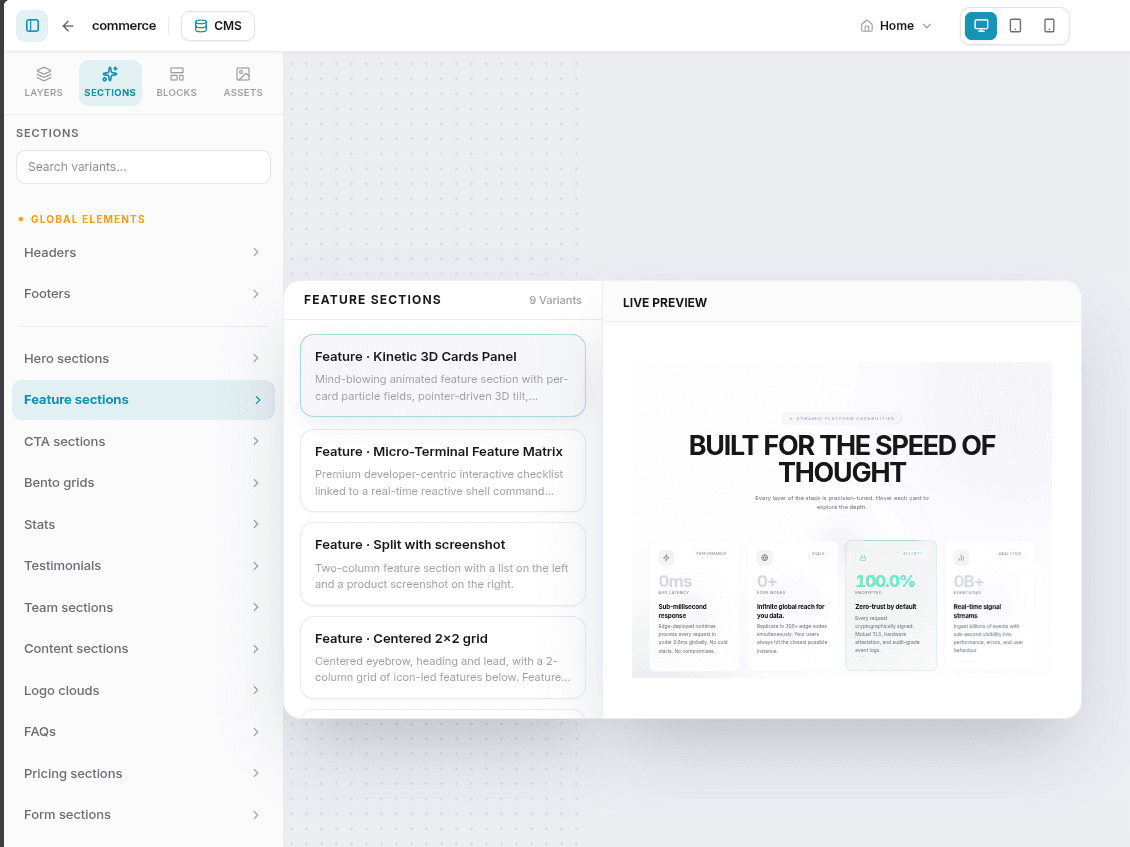
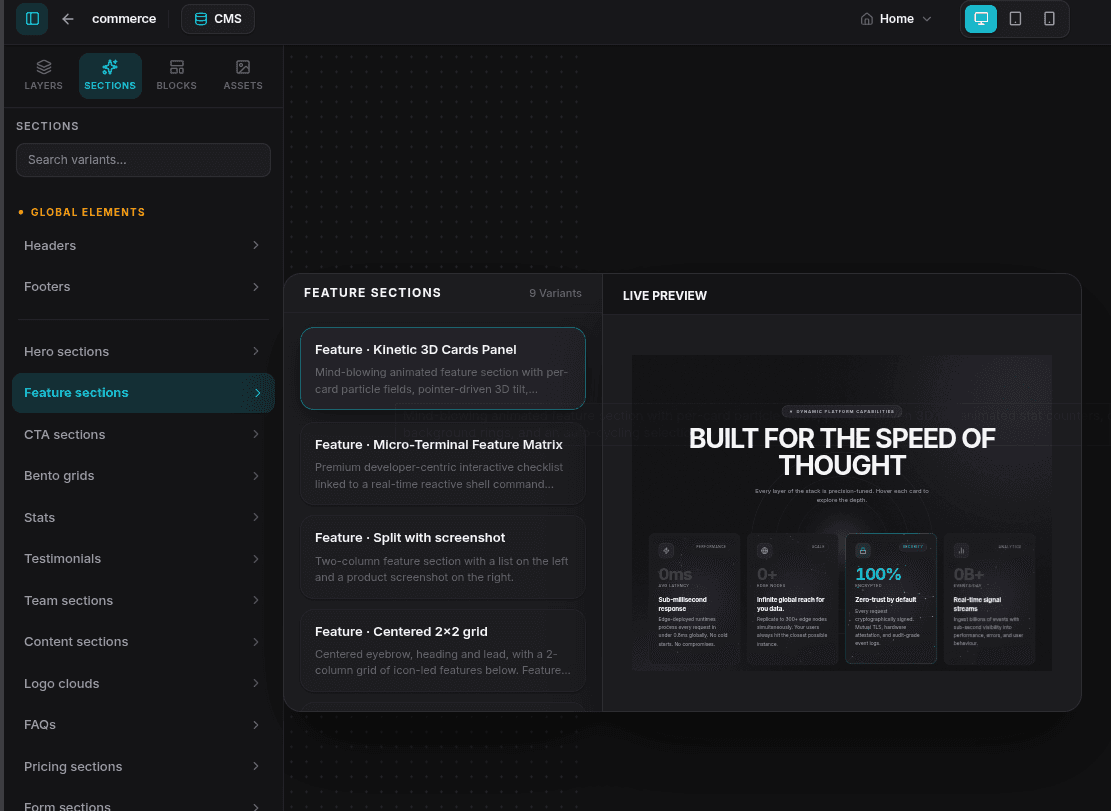
- Open the Sections tab in the Left Sidebar.
- Select a section category (e.g., Hero sections, Bento grids, CTA sections, Team sections) to view its template variants.
- Click any template card in the sidebar to instantly append it to the bottom of the page canvas.
Adding Custom / Blank Sections
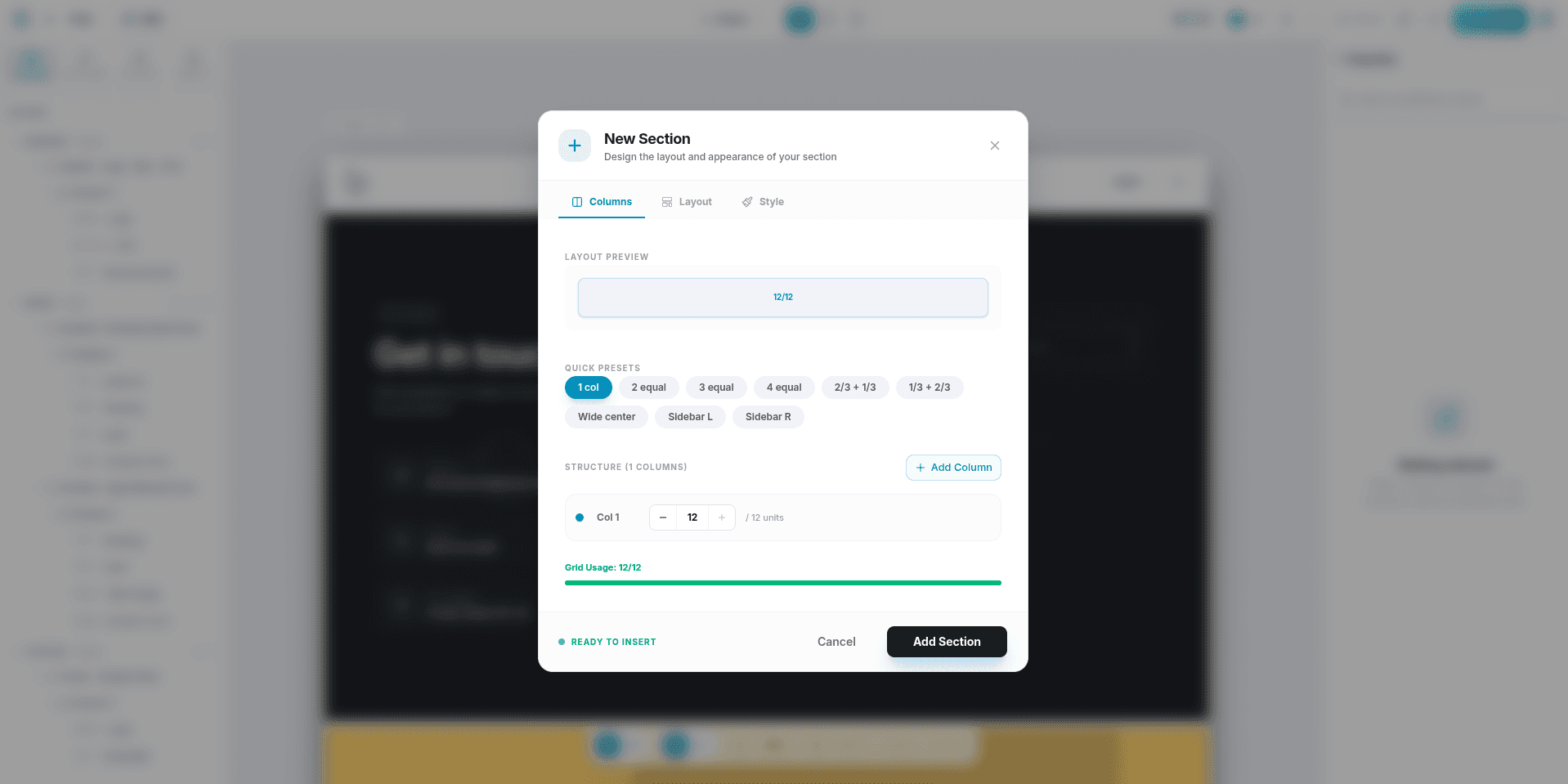
You can open the Add Section modal (to configure columns, gaps, margins, and backgrounds) in three ways:
- On an Empty Canvas: When editing a brand new page or after deleting the last remaining section, a large Add Section button appears in the center of the canvas. Click it to create your first section.
- On Hover (Insert Above/Below): If there are existing sections on the canvas, hover your cursor over any section. Floating + (plus) buttons will appear at the top and bottom edges of the section container. Click either button to add a section above or below it.
- From the Layers Panel: Click the + (plus) icon next to the Main category in the Left Sidebar's Layers list at any time.
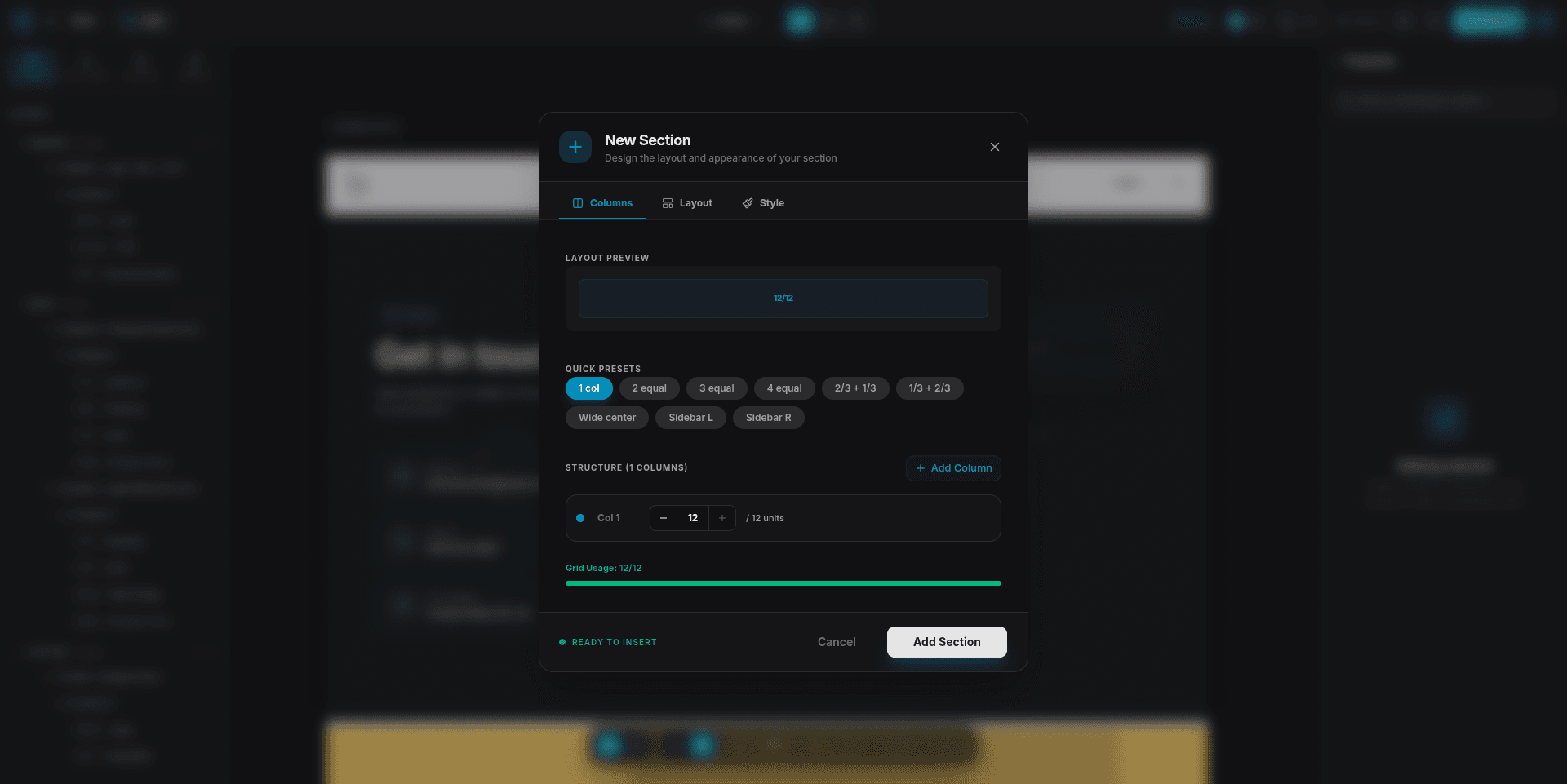
Once the Add Section modal opens, choose a column layout preset (e.g., 1-Column, 2-Columns, 3-Columns, or asymmetrical spans), configure your margins, and click Add Section to insert the blank row.
Section Categories
Global Layout Sections
These appear at the top and bottom of every page across your entire website:
| Section | Description |
|---|---|
| Header | The top navigation bar, typically containing your site logo, menu links, and a call-to-action button. |
| Footer | The bottom footer, housing copyright information, site maps, social media icons, and legal links. |
Editing the Header or Footer on any page updates it site-wide. Publishing any page automatically deploys the updated global layouts.
Page Content Sections
These represent unique sections created specifically for the active page:
| Category | Typical Layout Options |
|---|---|
| Hero | Big visual headlines, text subtitles, CTA buttons, and split column images. |
| Feature | Grid cards displaying product benefits, service items with icons, or content splits. |
| Bento | Modern asymmetric box layouts combining stats, copy, and images in a grid. |
| Stats | Large numbers, metrics, milestones, and labels. |
| Testimonial | Customer quotes, author names, avatars, and star ratings. |
| Team | Profile grids showing team photos, job titles, bio details, and social profiles. |
| Content | Multi-column long-form text articles, lists, and formatted rich text. |
| Logos | Horizontal bands showing client logos, partner brands, or media mentions. |
| FAQ | Interactive accordion lists that expand/collapse to answer customer questions. |
| Pricing | Multi-card pricing comparison tables highlighting different tiers and buttons. |
| Form | Direct integrations that display custom forms you've created in the Form Manager. |
Section Settings (Right Sidebar)
Select a section on the canvas to open its settings panel in the right sidebar.
General Settings
- Label: Change the name of the section as displayed in your Left Sidebar layers list.
- Anchor ID: A custom identifier (e.g.,
featuresorcontact-us) that enables linking directly to this section. Visitors clicking a link toyoursite.com/#featureswill be scrolled smoothly to this section. - Section Type: A dropdown to re-categorize the section's semantic layout type.
Spacing & Spans (Columns Only)
- Column Span: When selecting a column within a blank layout, use the slider to adjust its width out of a 12-column grid (1 to 12). For example, two equal columns will have a span of 6 each.
Size & Alignment
- Width: Choose between Full (extends edge-to-edge) or Boxed (contents are constrained inside a max-width container).
- Max Width (px): When set to Boxed, you can specify an exact pixel width limit (e.g.,
1200). - Height: Configure the minimum height to Auto, Small, Medium, Large, Half Viewport, or Full Viewport (min-h-screen).
- Alignment: Adjust the horizontal alignment (Left, Center, Right) and vertical alignment (Top, Middle, Bottom) of inner elements.
- Sticky Columns: Toggle this switch to lock columns inside this section in a sticky position while scrolling. Perfect for maintaining visibility of an image or text card beside a long list.
Background
- Background Color: Select a custom solid background color, or toggle the Use theme color switch to inherit your global theme's default background token.
- Background Image: Set an image from your assets library, configure the fit (Cover, Contain, Stretch), alignment position, and apply an optional color overlay to enhance text readability.
- Gradient Backgrounds (Presets Only): Choose start and end colors, add an optional middle gradient color, and select the direction angle (e.g.,
to-bottom-right).
Borders, Shadows & Spacing
- Padding & Margin: Fine-tune inner paddings and outer margins for all four sides (top, bottom, left, right) independently.
- Border Style: Define border width (0–10px), type (Solid, Dashed, Dotted), color, and corner rounding radius.
- Box Shadow: Choose shadow depths (None, XS, SM, MD, LG, XL) to elevate sections visually.
Device Visibility
Control whether this section appears on specific device screen sizes:
- Visible on Desktop: Show/hide on screens ≥ 1024px.
- Visible on Tablet: Show/hide on screens 768px – 1023px.
- Visible on Mobile: Show/hide on screens < 768px.
Reordering & Managing Sections
[!NOTE] Section reordering, duplication, and deletion apply to sections within the Main page category. Global Header and Footer sections are fixed layout slots and cannot be reordered or duplicated.
- Reordering: Drag and drop layers up or down inside the Main category of the Left Sidebar Layers panel, or right-click a section on the canvas and select Move Up / Move Down.
- Duplicating: Right-click a section on the canvas and select Duplicate to clone it.
- Deleting: Click the red trash icon next to a section in the Layers panel, or right-click a section on the canvas and select Delete.
Deleting a section permanently removes all blocks nested inside it. If done accidentally, immediately use the Undo (Ctrl+Z / Cmd+Z) button to restore it.