General Settings
Configure your site's name, slug, favicon, SEO defaults, robots.txt rules, and delete your site.
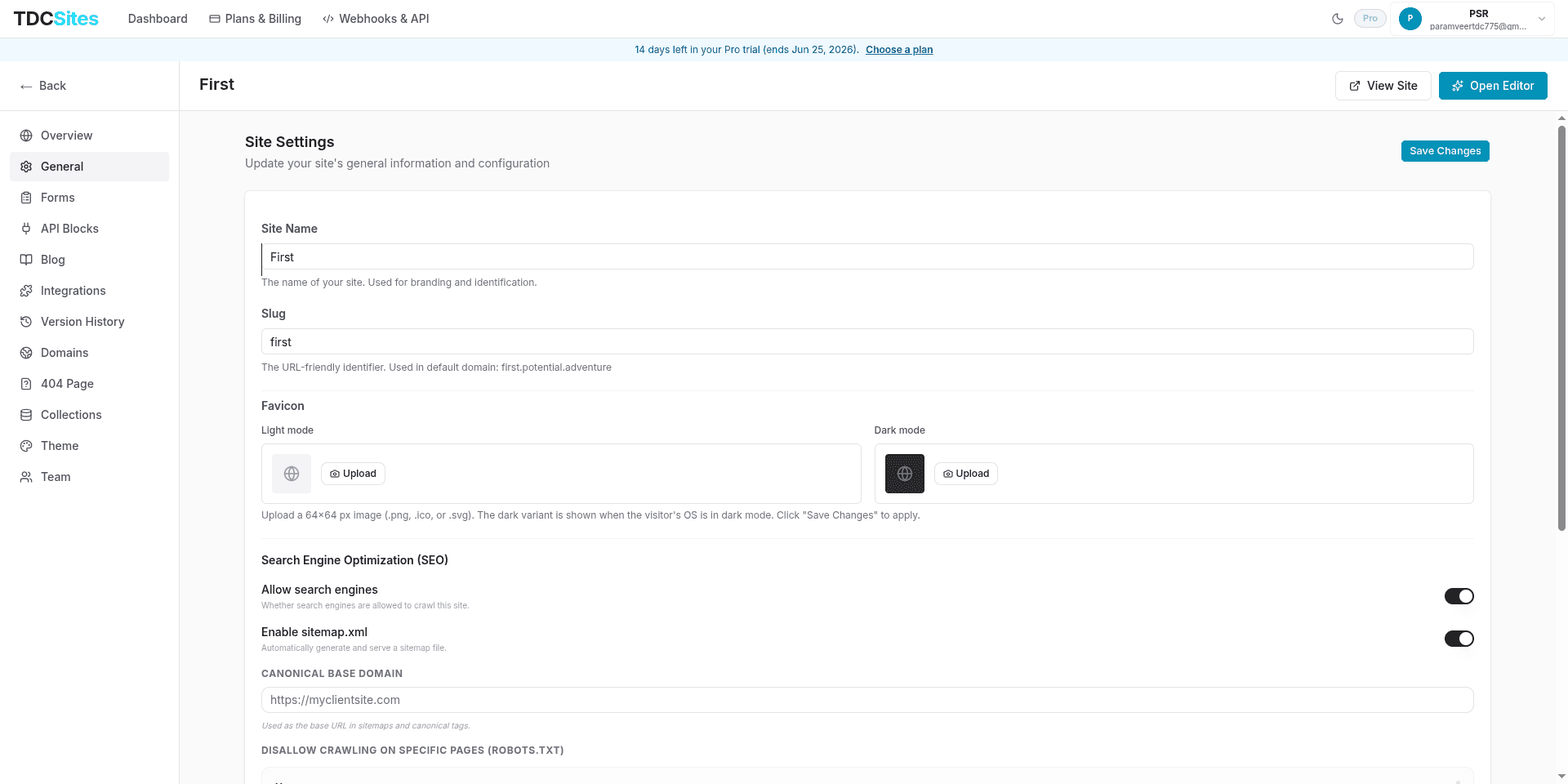
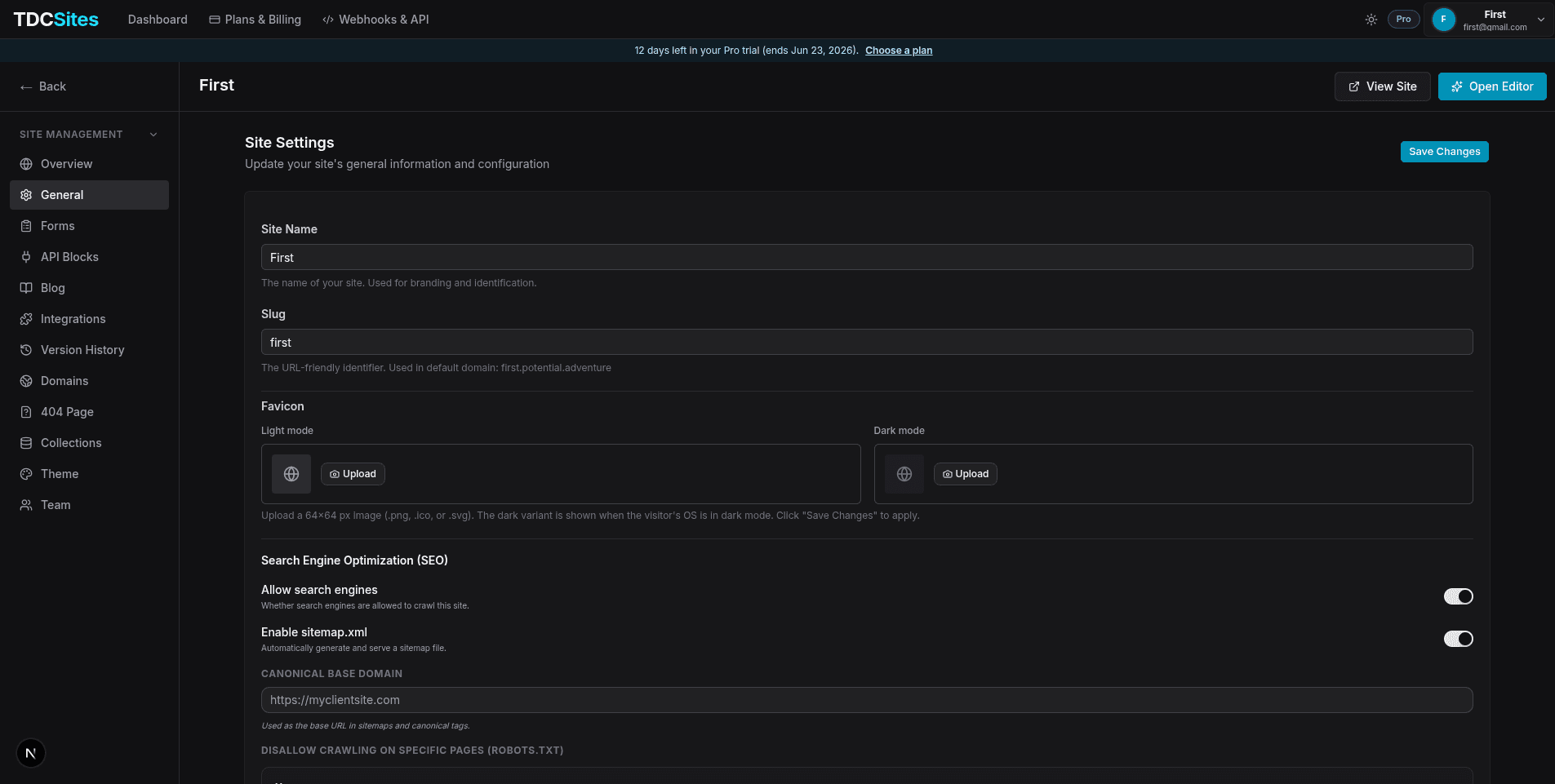
The General tab is your site's configuration hub. Every change here affects the site globally — from what appears in the browser tab to how search engines discover and index your pages.
Navigate to your site → General tab.
You need the Manage Settings permission to view and edit this tab. Viewers cannot access it.
Saving Changes
All fields on this page share a single Save Changes button in the top-right corner of the panel. Changes are not applied until you click Save Changes — you can edit multiple fields and save them all in one action.
While saving, the button shows Saving… and all inputs are disabled. A success toast confirms the update.
Site Identity - Site Name
| Property | Value |
|---|---|
| Field | Text input |
| Placeholder | "Enter site name" |
| Required | Yes — cannot be saved blank |
| Error | "Site name is required." |
The site name is your internal label — it appears in your dashboard site cards, the browser tab title when editing, and in any places where the site is referenced by name. Renaming the site does not change the slug or domain.
Slug
| Property | Value |
|---|---|
| Field | Text input |
| Placeholder | "site-slug" |
| Required | No |
The slug is the URL-safe identifier used to build your site's default subdomain. For example, a slug of abc generates the domain abc.sites.tdcapps.com.
Changing the slug changes your subdomain URL. Any existing links using the old subdomain will stop working. Update DNS records and notify anyone who has bookmarked the old URL before making this change.
Slug format rules:
- Lowercase letters, numbers, and hyphens only
- No spaces — use hyphens instead (e.g.,
my-site, notmy site) - The new subdomain is shown below the field in real time as you type
Favicon
A favicon is the small icon that appears in browser tabs, bookmarks, and link previews. TDC Site Builder supports separate favicons for light mode and dark mode so your icon always looks sharp regardless of the visitor's system theme.


Supported Formats & Size
| Requirement | Value |
|---|---|
| Accepted formats | .png, .ico, .svg, .jpg, .webp |
| Recommended size | 64×64 px (square) |
| Maximum file size | 2 MB |
SVG favicons scale perfectly at any size and are the best choice for logos with clean lines. For photo-based icons, use PNG.
Light Mode Favicon
Displayed when the visitor's operating system is in light mode. Click Upload to open the file picker, or drag-and-drop a file onto the upload area.
- The uploaded image appears as a 40×40 px preview on a light background so you can verify it looks correct
- A Remove button appears after uploading — click it to clear the favicon
- You must click Save Changes after uploading to persist the change
Dark Mode Favicon
Identical behaviour to the Light Mode favicon, but displayed when the visitor's OS is in dark mode. The preview renders on a dark background.
If you don't upload a Dark Mode favicon, the browser falls back to the Light Mode favicon — the dark mode field is optional.
Upload Errors
| Situation | Message shown |
|---|---|
| Non-image file selected | "Please choose an image file." |
| File larger than 2 MB | "Image must be 2 MB or smaller." |
Search Engine Optimization (SEO) - Allow Search Engines
| Property | Value |
|---|---|
| Control | Toggle switch |
| Default | On |
When on: Search engines (Google, Bing, etc.) are allowed to crawl and index all pages on this site. This is the correct setting for any live production site.
When off: The server sends an X-Robots-Tag: noindex header on every response. Search engines that respect this header will de-index the site. Use this during development, for staging sites, or for private client sites you don't want appearing in search results.
Turning this off for a site that is already indexed will not immediately remove it from Google. De-indexing happens gradually as search bots re-crawl pages. If you need urgent removal, submit a removal request via Google Search Console.
Enable sitemap.xml
| Property | Value |
|---|---|
| Control | Toggle switch |
| Default | On |
When on: TDC Site Builder automatically generates a sitemap.xml file and serves it at https://yoursite.com/sitemap.xml. This file lists all active, indexable pages along with their last-modified date, change frequency, and priority — the exact values set in each page's individual SEO settings.
Submitting this URL to Google Search Console and Bing Webmaster Tools helps search engines discover and index your pages faster.
When off: No sitemap is served. Pages can still be indexed if search bots discover them through links, but it will be slower.
Canonical Base Domain
| Property | Value |
|---|---|
| Field | Text input |
| Placeholder | https://myclientsite.com |
| Required | No |
The canonical base domain is the authoritative URL prefix used in:
- All
<link rel="canonical">tags generated for your pages - Sitemap
<loc>entries
When to set this:
If you have a custom domain configured (e.g., https://mycompany.com) and want all canonical tags to reference that domain instead of the auto-generated subdomain, enter it here. This prevents duplicate content issues if your site is accessible from multiple URLs.
Correct format:   https://mycompany.com
Not:              mycompany.com  (missing https://)
Not:              https://mycompany.com/  (trailing slash)
Leave it blank if you're only using the default subdomain — the subdomain URL will be used automatically.
Disallow Crawling on Specific Pages
This section lets you block search engines from crawling specific pages by adding Disallow rules to your site's robots.txt file.
How It Works
Each page in your site appears in a scrollable list with its name and URL path. Toggle a page on to add it to the disallow list, or off to remove it.
When you Save Changes, the following robots.txt rules are generated automatically:
User-agent: *
Disallow: /page-slug
Disallow: /another-page-slug
These rules tell compliant search bots not to crawl the specified URLs. Already-indexed pages won't be immediately removed — they'll eventually be de-indexed as bots re-crawl.
When to Disallow Pages
| Use Case | Pages to Disallow |
|---|---|
| Thank-you / confirmation pages | /thank-you, /order-confirmed |
| Utility pages | /404, /coming-soon |
| Duplicate-content variants | Landing page A/B test variants |
| Internal-only pages | Login-required or password-protected pages |
| Pages under construction | Any page not yet ready for public traffic |
Disallowing a page from robots.txt does not hide it from visitors — the page is still publicly accessible by URL. It only instructs search bots not to crawl it. To hide a page from all visitors, use the Active Status toggle in Page settings instead.
Relationship with Per-Page noindex
You have two complementary tools for controlling search engine visibility:
| Tool | Where | What it does |
|---|---|---|
| Disallow (robots.txt) | General tab | Prevents the bot from even visiting the URL |
| noIndex meta tag | Per-page SEO settings | Allows crawling but tells the bot not to index it |
For maximum exclusion, use both on the same page. For pages where you want to crawl-but-not-index (to pass link equity), use only the per-page noIndex toggle.
Delete Site


Deleting a site is permanent and irreversible. All pages, sections, blocks, version history, form submissions, blog posts, collections, domain settings, and team members associated with this site will be deleted immediately.
The Delete site section appears at the bottom of the General tab, only visible to users with site management permissions.
Deletion Flow
Click the red Delete site button in the danger zone.
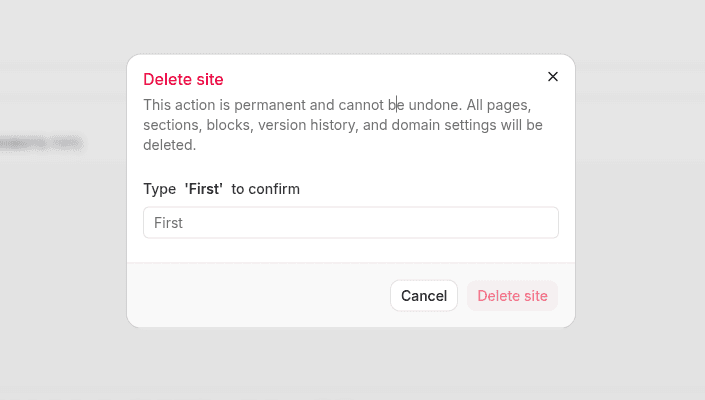
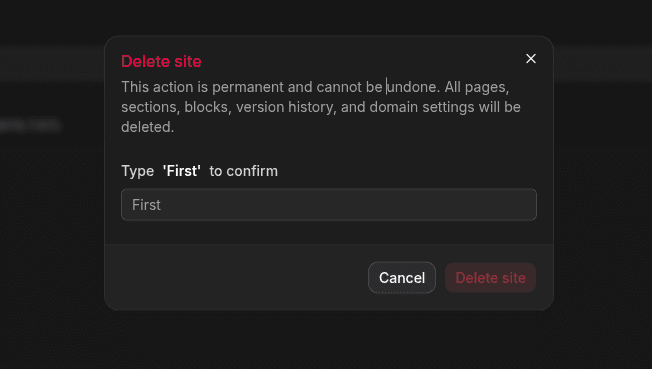
A confirmation dialog opens. Read the warning carefully:
"This action is permanent and cannot be undone. All pages, sections, blocks, version history, and domain settings will be deleted."
In the confirmation field, type your exact site name (case-sensitive) to unlock the delete button. The button remains disabled until the text matches exactly.
Click the red Delete site button in the dialog. The site is deleted immediately and you are redirected to the dashboard.
What Is Deleted
| Data | Deleted? |
|---|---|
| All pages and their content | ✓ Yes |
| All published versions | ✓ Yes |
| All form definitions and submissions | ✓ Yes |
| All blog posts, categories, and tags | ✓ Yes |
| All CMS collections and items | ✓ Yes |
| Custom domain configuration | ✓ Yes |
| Team member site access | ✓ Yes |
| Integrations (GTM, GA4, Pixel, scripts) | ✓ Yes |
| Uploaded assets (images, files) | ✓ Yes |
Safe Alternative: Hiding the Site
If you're not sure about deleting, use these reversible options instead:
- Deactivate individual pages via the Active Status toggle in Page Manager — visitors get a 404 but no data is lost
- Remove the custom domain to make the site inaccessible from the custom URL while keeping all content
- Revoke team access via the Team tab to prevent further editing
Settings Reference
| Field | Affects |
|---|---|
| Site Name | Dashboard cards, editor browser tab |
| Slug | Default subdomain URL |
| Favicon Light | Browser tab icon in light mode |
| Favicon Dark | Browser tab icon in dark mode |
| Allow Search Engines | Global X-Robots-Tag header |
| Enable sitemap.xml | /sitemap.xml availability |
| Canonical Base Domain | All <link rel="canonical"> tags and sitemap <loc> values |
| Disallowed Pages | robots.txt Disallow entries |