Collections (CMS)
Create structured data models, manage content entries, and bind database items to page editor layouts.
TDC Site Builder includes a built-in headless Content Management System (CMS) called Collections. Instead of hardcoding content, you can define a structured database schema (e.g., for team members, pricing tiers, FAQs, or reviews), add data records, and bind them dynamically to visual layout blocks in the Page Editor.
Overview
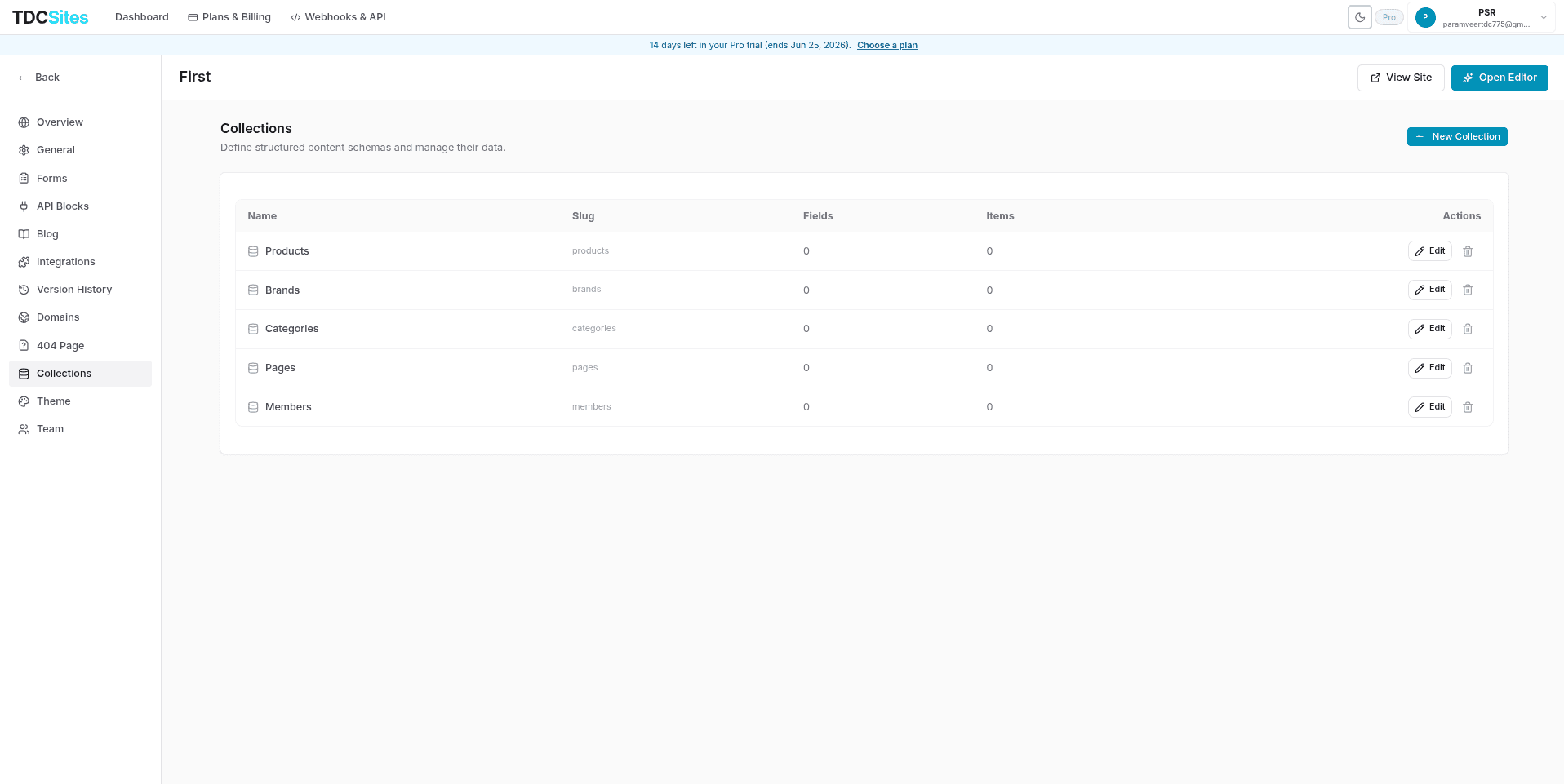
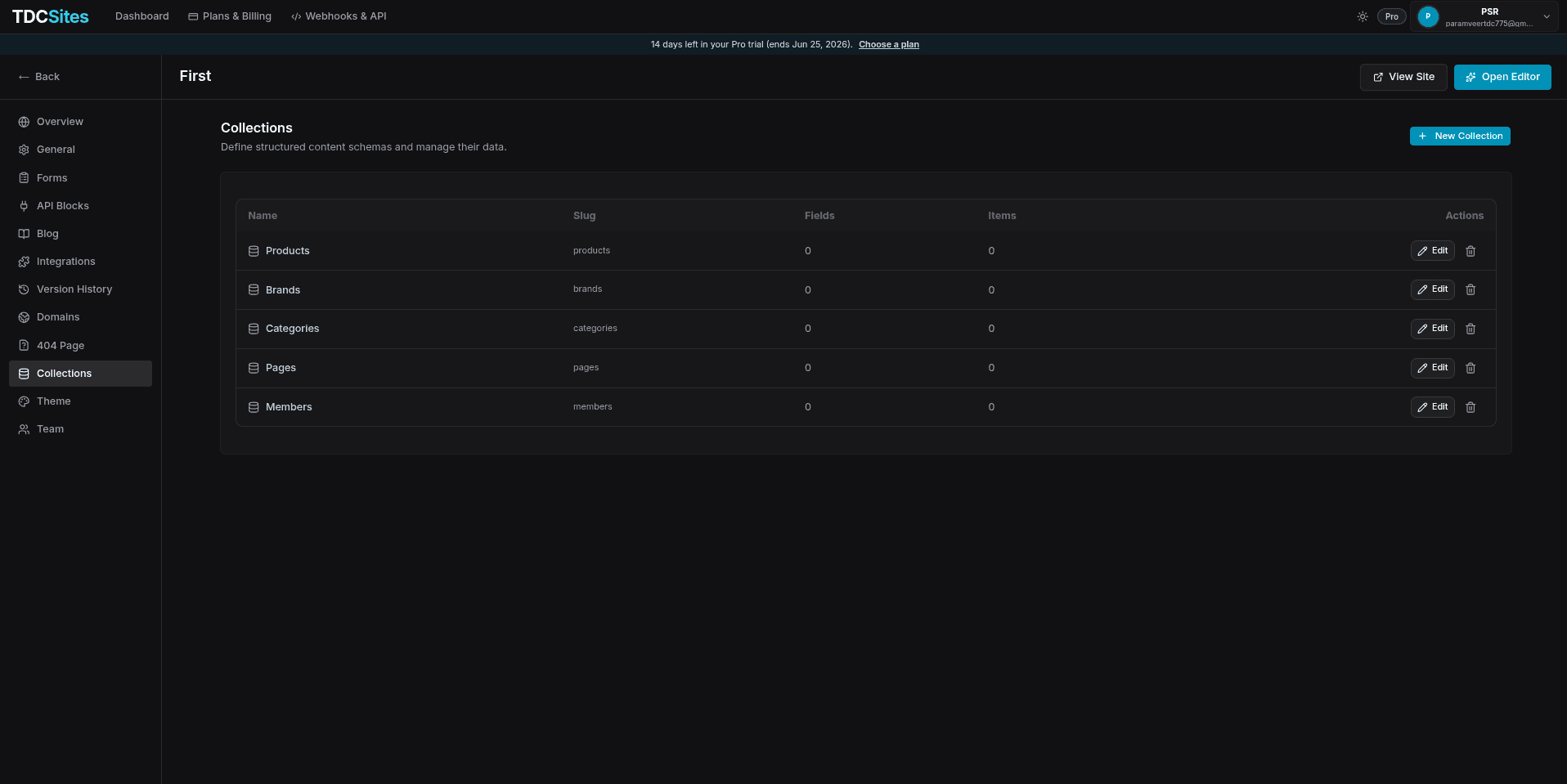
Access the CMS dashboard by selecting the Collections tab in the left sidebar of your Site Management page. The list table displays:
- Collection Name: The label of your structured collection.
- Slug: The URL-friendly identifier used for API operations and editor queries.
- Fields: The number of fields defined in the schema.
- Items: The total number of content records added.
- Actions: Edit schema and content, or delete the collection.
Creating & Defining a Collection Schema
To create a new content model:
Click + New Collection in the top-right corner of the Collections panel.
Enter a name (e.g., Team Members or FAQs) and click Create. This automatically generates a unique slugs identifier and launches the Collection Editor Dialog.
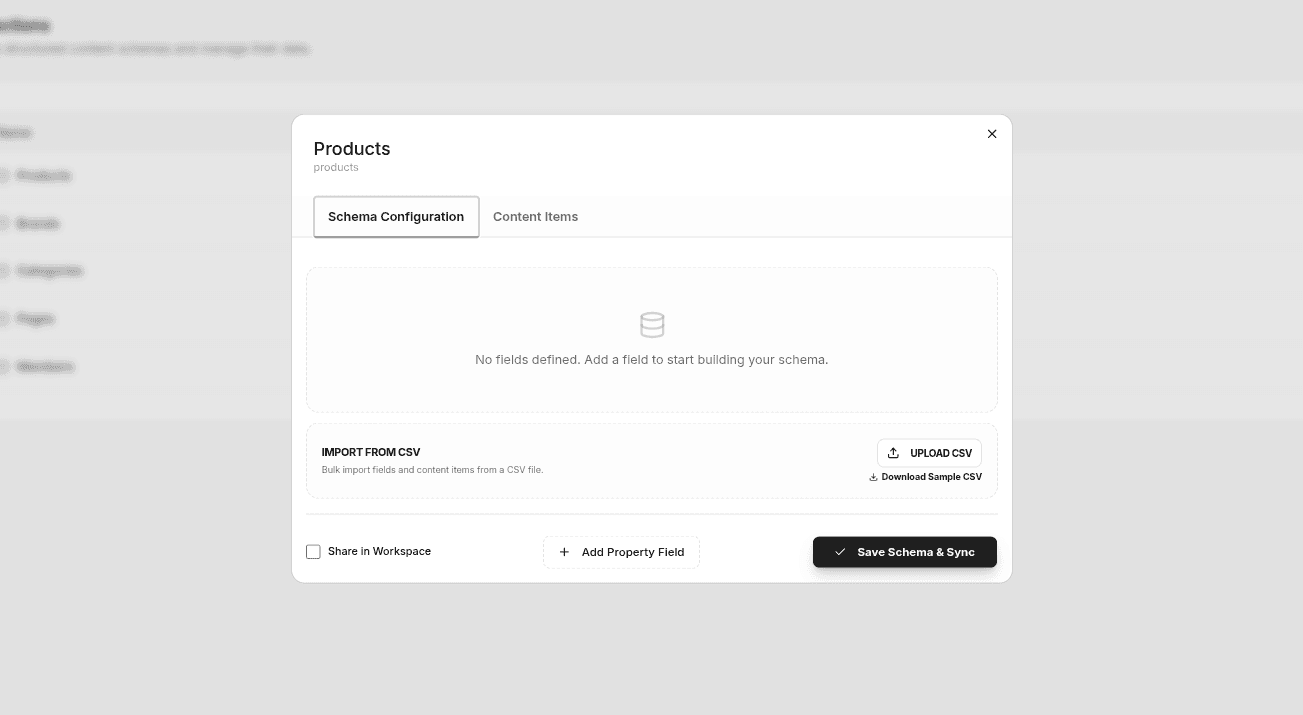
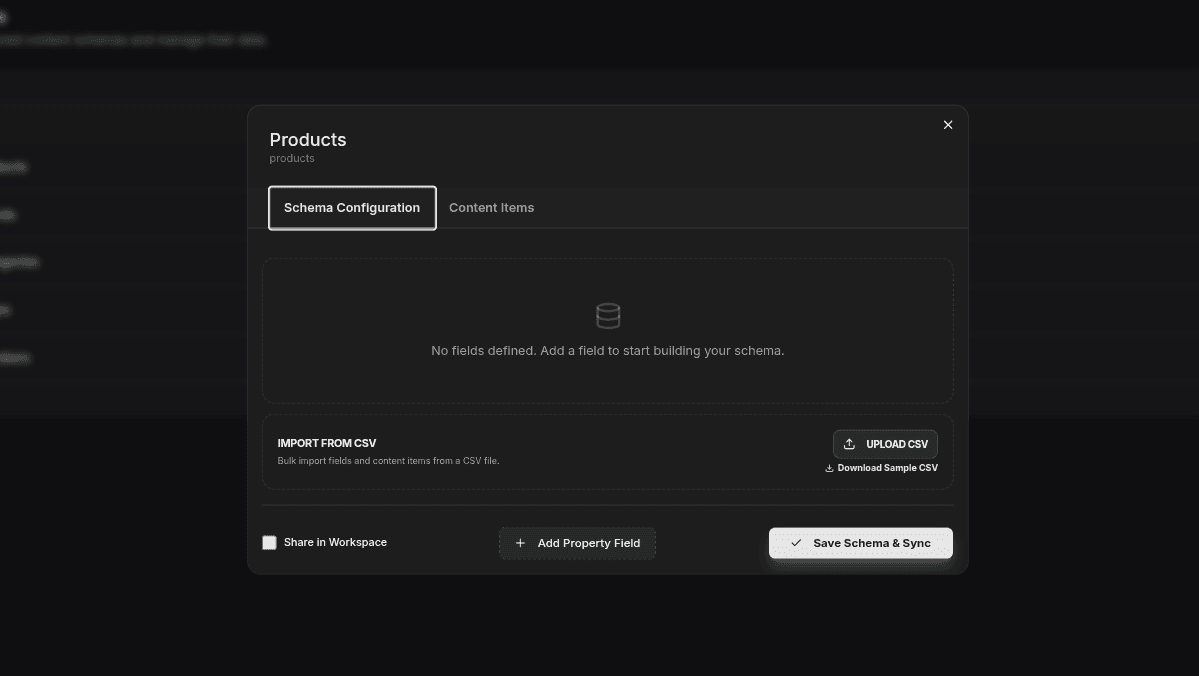
In the Schema Configuration tab, click Add Property Field to define your data model structure.
Supported Field Types
Each field in your schema requires a Field Name (for the UI) and a unique API Key (prefixed with #, used to reference the value in editor blocks). Select from these types:
| Field Type | Input Control | Best Used For |
|---|---|---|
| Text | Single-line input | Titles, names, role headers, phone numbers. |
| Rich Text | Textarea block | Descriptions, formatted body text, lists. |
| Image URL | Asset Library picker | Headshots, product photos, graphics, company logos. |
| Link URL | Link address input | Button targets, external references, social profiles. |
| Color | Color picker box | Accent color settings, background overrides. |
| Number | Numeric entry box | Pricing, counters, ratings, custom sorting weights. |
Organizing Schema Fields
- Reordering: Click and hold the vertical grip handle (⋮⋮) on the left of any field row to drag-and-drop fields into your preferred order.
- Deleting Fields: Click the trash icon next to a field to remove it from the schema.
- Share in Workspace: Check the Share in Workspace checkbox to make this collection available as global variables across multiple sites in your workspace.
- Click Save Schema & Sync at the bottom to commit your schema structure.
Importing Data via CSV
For rapid content migration, the Import from CSV card allows you to import schemas and entries in bulk:
- Click Download Sample CSV to view the format template.
- Structure your CSV headers using the format:
FieldName [TYPE](e.g.,Full Name [TEXT],Photo [IMAGE],Bio [TEXT],Order [NUMBER]). - Click Upload CSV to upload your
.csvfile. - Automated Media Migration: If your CSV contains external image URLs (e.g., from Unsplash or an external hosting provider), TDC Site Builder automatically downloads those images, uploads them to your secure site Asset Library, and maps the new local URLs to your items.
Managing Content Items
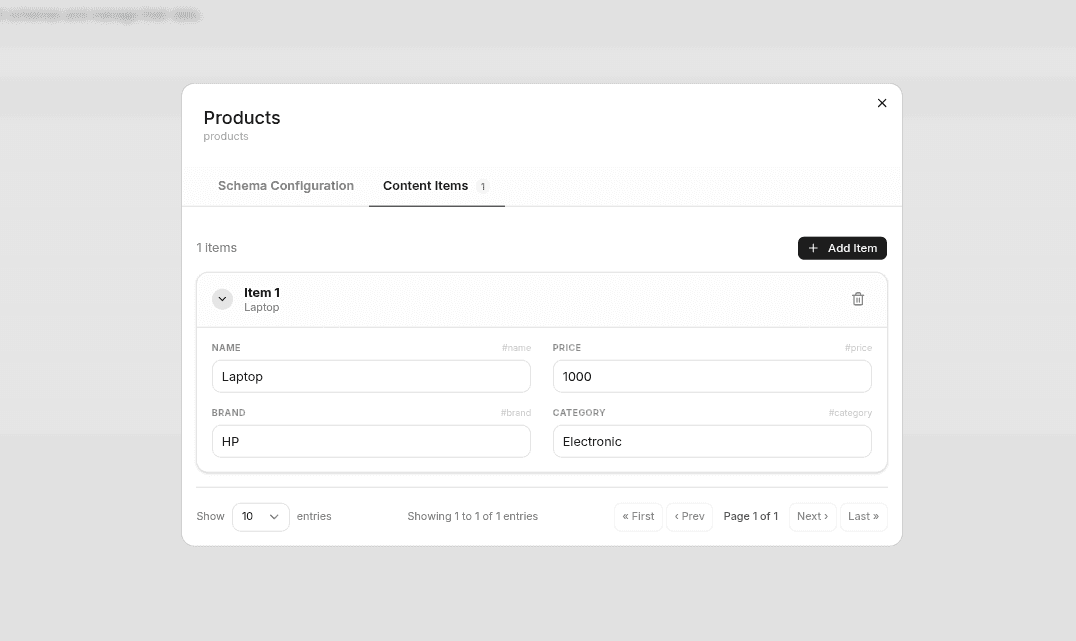
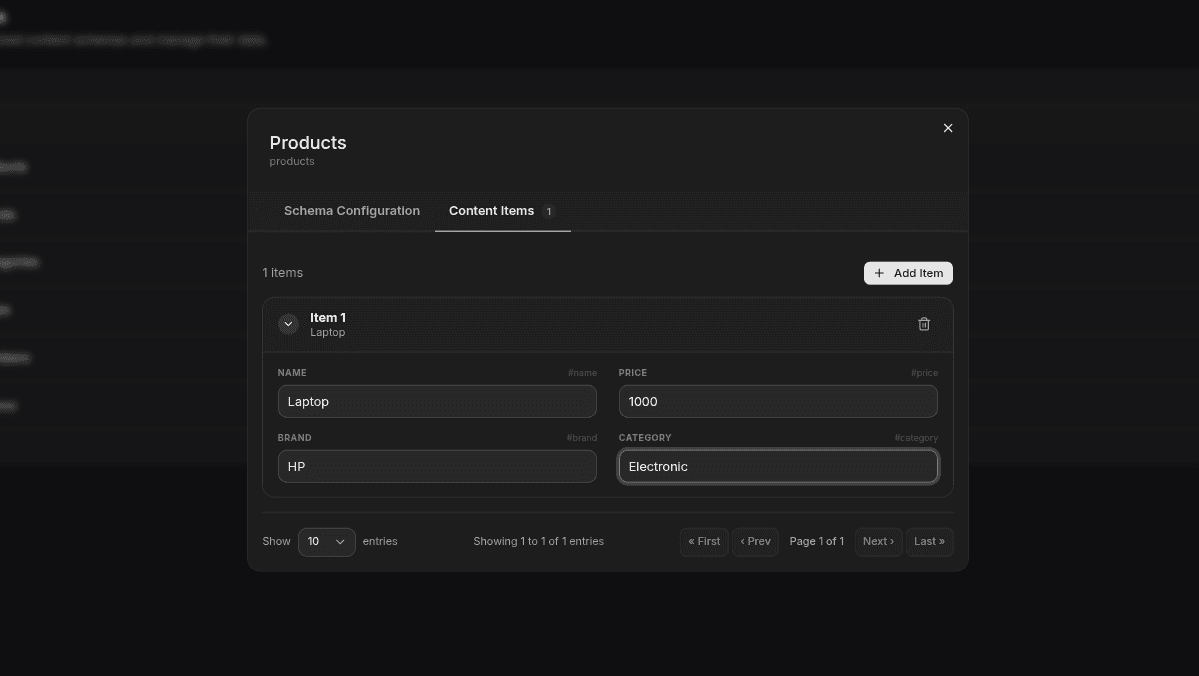
Switch to the Content Items tab in the Collection Editor Dialog to populate your database:
- Adding Items: Click Add Item to create a blank record.
- Collapsible Rows: Items are rendered as collapsible rows labeled
Item 1,Item 2. The header shows a text preview snippet of the first field to make scanning long lists easy. - Inline Editing: Expand a row to display input controls for each schema field.
- Media picker: For
Image URLfields, click Library to open the Asset Picker. You can select an existing image, upload a new one, or clear the selection. An aspect-ratio preview displays below the input. - Saving: Content edits save automatically when you click out of the input field (
Blur) or pressEnter. - Deleting Items: Click the trash icon on the item header.
Binding Collections in the Editor
Once a collection contains data, you can bind it to layout components inside the Page Editor:
- Open the Page Editor and drag a Collection Layout Block (like a Grid, List, or Carousel) onto the canvas.
- In the properties panel, choose your Collection from the data source dropdown.
- Map the visual placeholders (e.g., Image slot, Title block, Description line) to your collection's API keys (e.g.
#photo,#full_name,#bio). The canvas will immediately populate with your collection entries.