Theme Designer
Configure global colors, Google Fonts typography, border radius, spacing, and shadows for your site.
The Theme Designer provides a central design system dashboard (similar to a tweakcn-style designer) where you can build and apply cohesive visual themes across every page, block, and button on your website in one place.
Overview
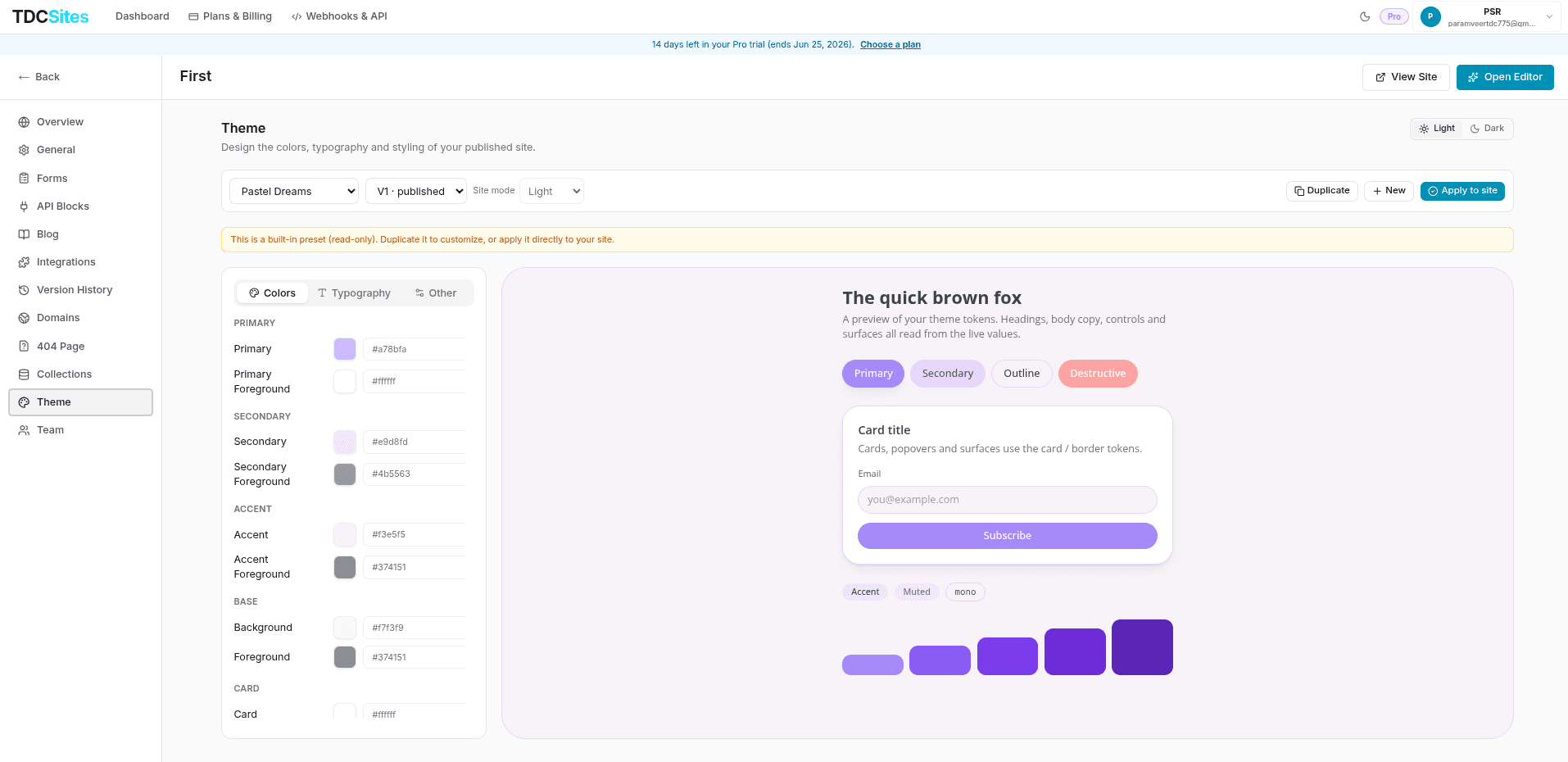
To open the designer, select the Theme tab in the left sidebar of your Site Management page.
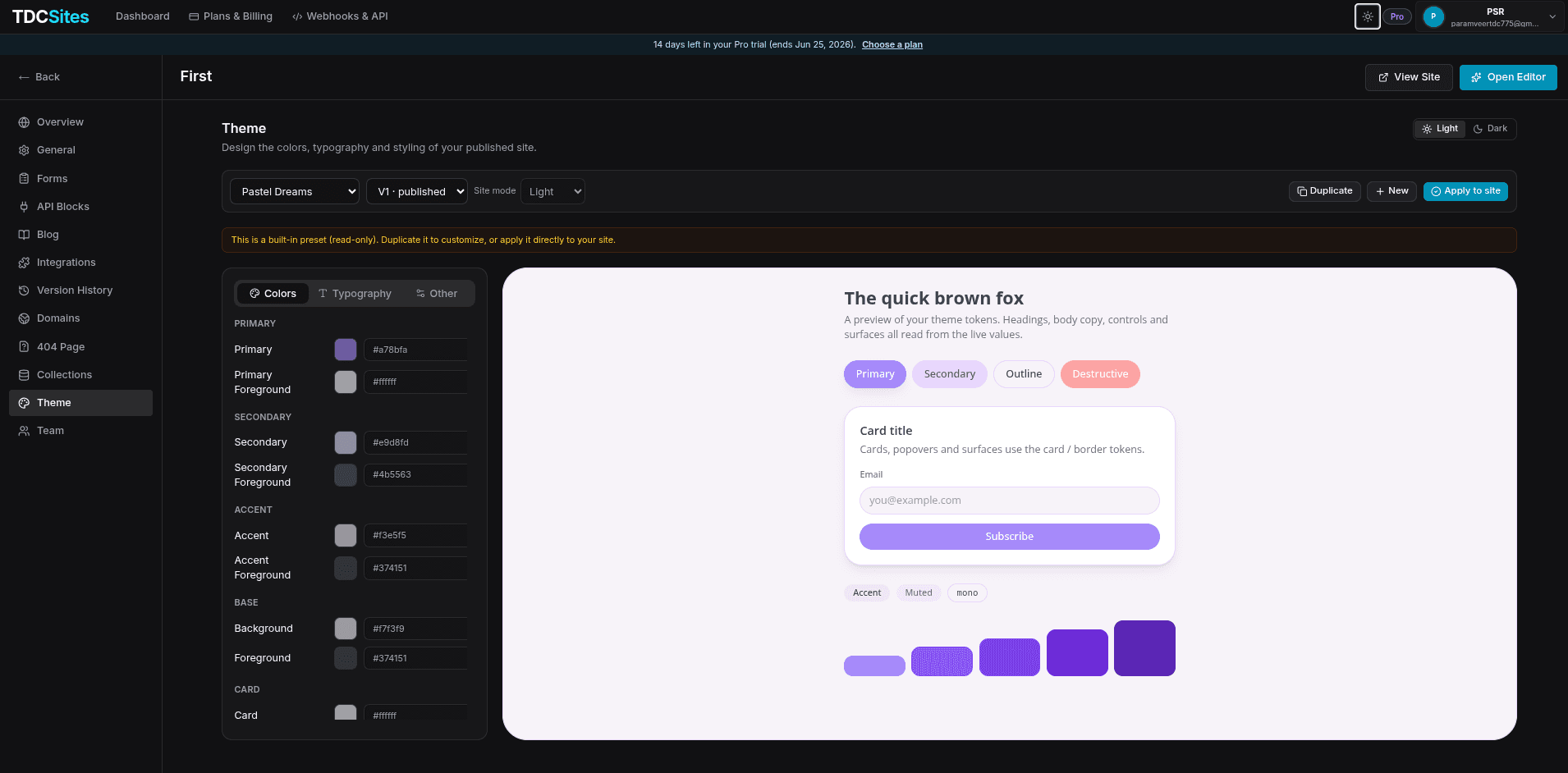
The interface consists of a Theme Control Panel on the left, which is divided into three configuration tabs: Colors, Typography, and Other. The right side of the screen renders an Interactive Live Preview of standard component blocks (headings, paragraphs, buttons, cards) styled with your active design tokens.
Designer Controls & Navigation
1. Theme Selection & Presets
- System Presets (Read-Only): TDC includes built-in design presets (e.g., Slate, Emerald, Classic). Presets are read-only. To customize them, click the Duplicate button to clone the preset into an editable custom theme.
- Your Themes: Click New to start a custom theme from scratch. You can delete custom themes using the trash button.
- Version Selector: Switch between your Draft version (where edits occur) and past Published versions (e.g.
v1,v2) to roll back styles.
2. Mode & Site Settings
- Light/Dark Mode Editing: Toggle between Light and Dark in the header. Colors and shadows are configured separately for each mode.
- Site Mode: Select the default state for visitors on the live site from the dropdown:
Light: Forces light mode.Dark: Forces dark mode.System: Matches the visitor's operating system or browser preferences.
Customizing Styling Tokens
Select from the sidebar tabs to customize your site's style rules:
Configure color tokens independently for Light and Dark modes:
- Primary Colors: Customize the primary brand accent (used for main buttons, highlights, links) and accents.
- Interface Colors: Customize values for the page background, surface (card backgrounds), borders, and text labels.
Set typography properties (automatically shared between Light and Dark modes) for three font roles: Sans Font, Serif Font, and Mono Font:
- Preset Stacks: Select from common system font stacks (e.g., standard sans-serif, Georgia serif, monospace).
- Google Fonts Directory: Click Browse Google Fonts under any font role. Search or filter through the Google Fonts library in real-time. Selecting a font automatically links the Google stylesheet and renders it on the live preview canvas.
Fine-tune sizing and effects (automatically shared between Light and Dark modes):
- Radius: Adjust a slider from
0rem(sharp edges) to2rem(rounded pill buttons and cards). - Spacing: Scale internal card padding, gaps, and layouts from
0.1remto0.4rem. - Letter Spacing: Tweak character tracking from
-0.1emto0.1em. - Box Shadow: Configure shadows with precise parameters:
- Shadow color picker.
- Opacity slider.
- Blur and Spread radius sliders.
- Offset X and Offset Y sliders.
Saving & Deploying Themes
Edits to custom themes are saved as drafts to prevent disrupting your live website:
- Save Draft: While editing, click Save draft in the toolbar to save your progress.
- Apply to Site: If you are switching to a built-in read-only preset, select the preset and click Apply to site in the toolbar to set it active.
- Publish: For custom themes, click Publish in the toolbar. This compiles your draft tokens into a version snapshot (e.g.,
v2), applies it to your site, and deploys it to your live web domain.