Version History
Browse, preview, and restore previous published versions of your website pages.
Version History protects your content from accidental losses. Every time you publish a page, TDC Site Builder automatically saves a historical snapshot, allowing you to trace changes, preview older page builds, and roll back securely.
Accessing Version History
To browse the version timeline for your site pages:
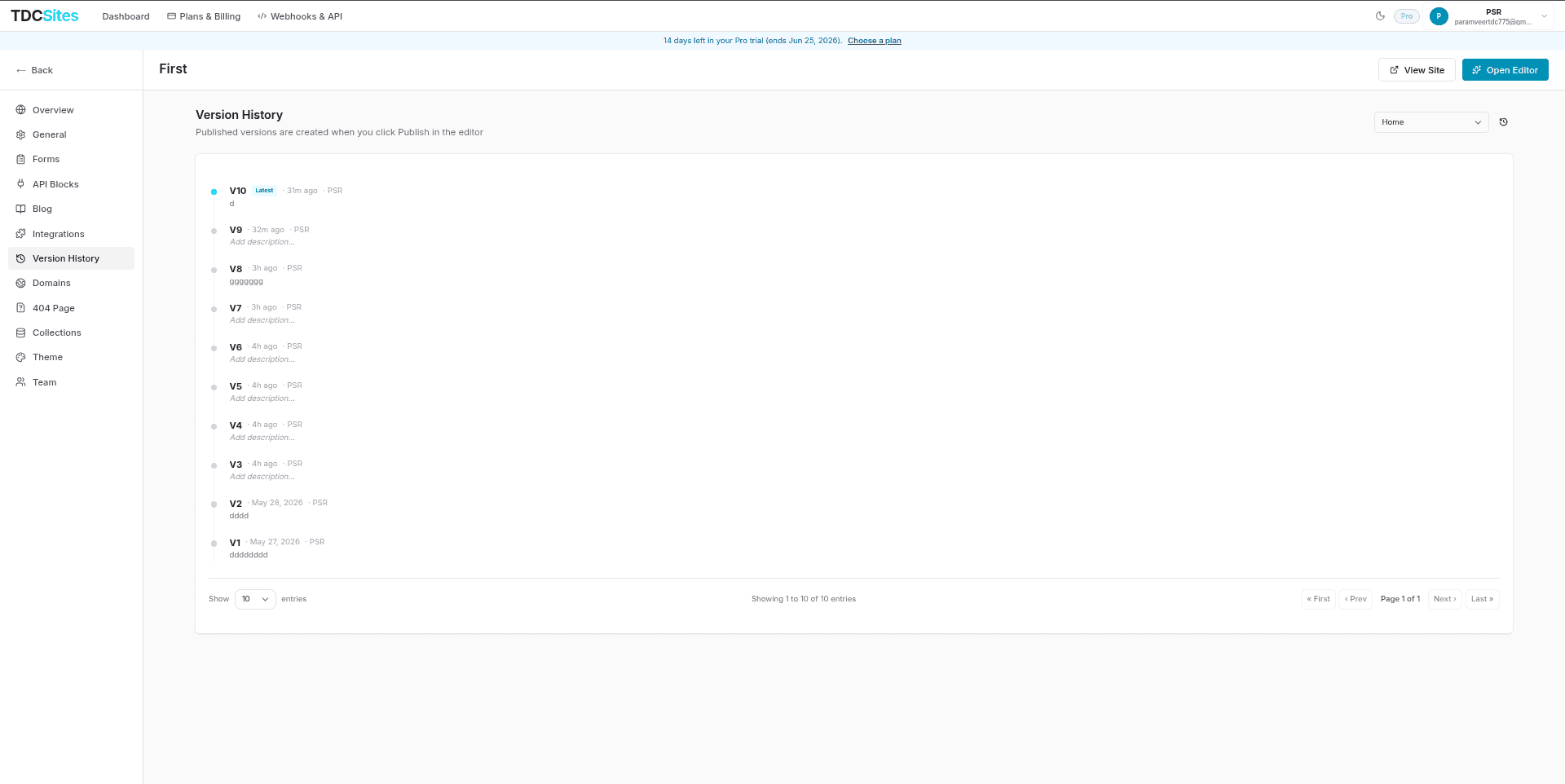
Navigate to your Site Dashboard and select the Version History tab in the left sidebar.
By default, the timeline displays the history of your Home page. To view a different page, select it from the Page Selector Dropdown in the top-right corner.
Understanding the Version Timeline
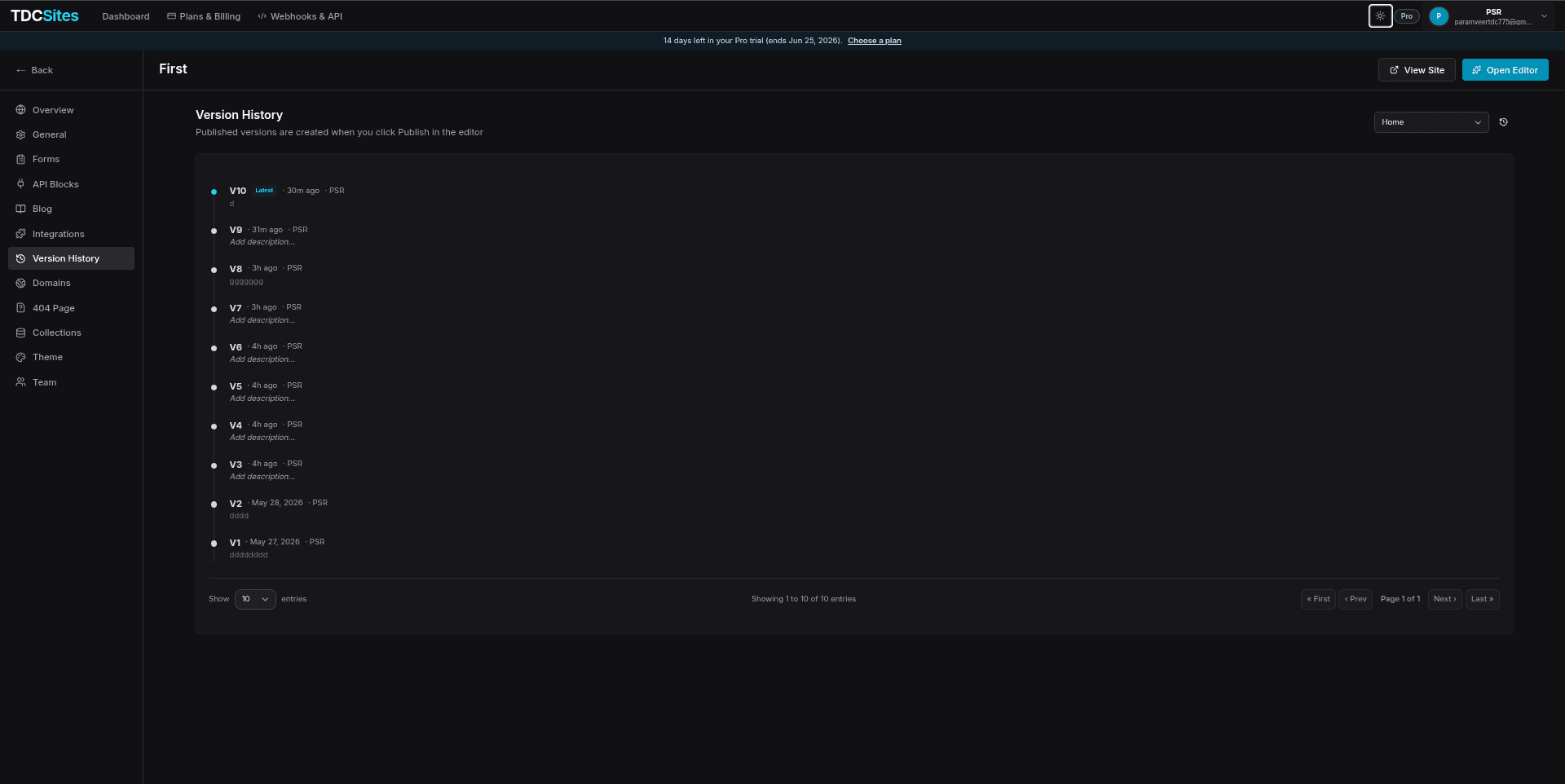
The timeline lists your page versions in descending chronological order. Each timeline entry includes:
- Version Number: An incremental tag (e.g.,
v1,v2) representing the publication sequence. - Latest Badge: Highlights the version that is currently live on your production URL.
- Relative Date: Displays how long ago the version was published (e.g.,
10m ago,2 hours ago,Yesterday, or a calendar date). - Publisher Byline: Identifies the name of the workspace member who built and published that version.
- Inline Descriptions: Click the Add description... link under any version to add a custom note (e.g., "Pre-relaunch backup" or "Updated contact page header"). Press
Enterto save, orEscapeto cancel.
Actions on Historical Versions
When you hover over any entry in the version list, two action buttons appear on the right:
1. Preview
- Clicking Preview opens a read-only canvas in a new browser tab (
/editor/[siteId]/preview/[versionId]). - This lets you visually inspect the exact layout, content blocks, and color styles of that snapshot without affecting the live site.
2. Restore
- Clicking Restore opens a confirmation modal before rolling back the active draft.
- Non-Destructive Backups: When you restore an older version, the system automatically saves your current working canvas as a new version entry. You can always undo a restoration by restoring the backup version.
- Once confirmed, the editor canvas updates instantly, and a toast notification confirms the successful restoration.