Blocks
Every block type available in the editor — what it does and how to configure it.
Blocks are the individual design and content elements nested inside sections. You can add, reorder, and customize blocks to build your page contents.
Adding a Block
You can add blocks in two ways:
- From the Sidebar: Open the Blocks tab in the Left Sidebar and click any block to add it to the active/focused column or section.
- From the Layers Panel: Click the + (plus) icon next to any section layer to open the block library and insert it directly into that layer.
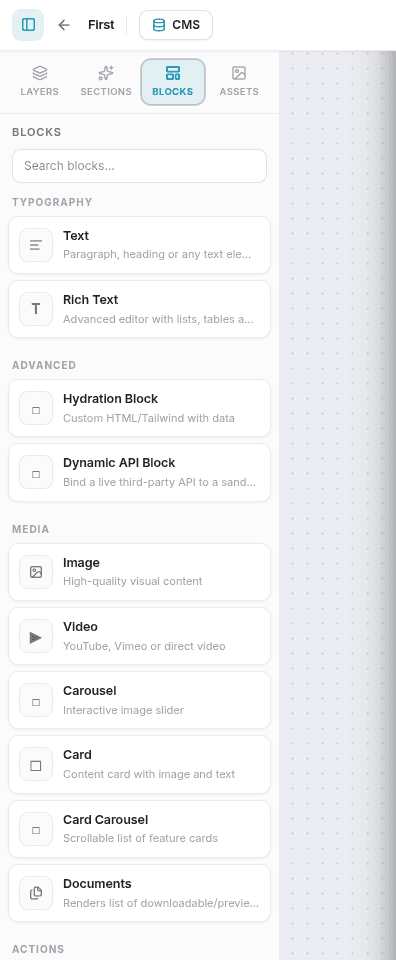
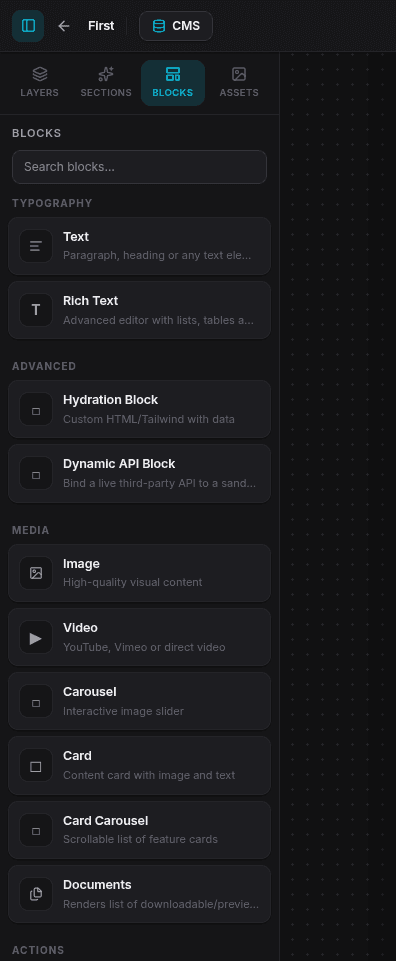
Block Categories & Types
Typography
Text
Used for short lines of copy, subtitles, or standalone paragraphs.
- Settings: Custom font family, font size, font weight, text color alignment (left/center/right), line height, and letter spacing.
Rich Text
A full WYSIWYG text editor for long-form content.
- Features: Support for headers (H1–H6), bold, italic, underline, strikethrough, bulleted and numbered lists, blockquotes, inline code snippets, and embedded hyperlinks.
Media
Image
Renders visual image files on your webpage.
- Settings: Upload a file from your assets or input a URL, specify descriptive Alt Text for SEO/accessibility, define dimensions (width/height), select object fit (Cover, Contain, Fill, Auto), apply rounded corners, and set a click action link.
Video
Embeds video players from YouTube, Vimeo, or direct .mp4 URLs.
- Settings: Video URL, autoplay toggle, loop toggle, player controls visibility toggle, aspect ratio presets (16:9, 4:3, 1:1), and a mute toggle (required by web browsers to allow autoplay).
Carousel
An interactive slideshow displaying multiple image slides.
- Settings: Add, remove, and reorder slides (each with an image, heading, and description), adjust autoplay intervals, toggle navigations (arrows and dot selectors), and set transition effects.
Card
A content card combining an image, header, description, and button.
- Settings: Card background color, border radius, padding, box shadow presets, card image source, title, body description, and CTA button destinations.
Card Carousel
A horizontally scrolling viewport displaying a list of Card blocks. Excellent for showcasing product features, reviews, or team bios.
- Settings: Customize items, slide behavior, controls, and specify how many cards show at once.
Documents
Displays a listing of downloadable assets or PDFs associated with your site.
- Settings: Heading title, document selection, display labels, and file download action buttons.
Advanced / Coding
Hydration Block
A developer-focused block that allows embedding custom raw HTML markup styled with Tailwind CSS utility classes.
- Settings: HTML/Liquid template editor. You can utilize template tags (e.g.,
{{global.site_name}}or{{collection_slug.field}}) to inject site variables or collection database items directly into your custom markup.
Dynamic API Block
A block that makes real-time calls to third-party endpoints and renders the returned JSON data.
- Settings: Select a configured API definition, map parameters, and define a LiquidJS output template to display the dynamic response.
Actions & Forms
Button
A styled call-to-action button.
- Settings: Label text, destination URL (internal page select or external web address), open-in-new-tab switch, size presets, width (auto/full), border rounding, and customizable icons (leading or trailing).
Form
Embeds a form generated in your platform's Form Manager to collect lead submissions.
- Settings: Select form instance, customize submit button labels, and configure success/redirect landing messages.
Layout
Divider
A styled horizontal divider line to separate sections of content.
- Settings: Color, thickness (px), style (solid, dashed, dotted), and width percentage.
Group
A flex container that holds other blocks. Used to build complex nested layouts (e.g. side-by-side buttons or multi-row icon lists).
- Settings: Flex layout direction (Row vs. Column), gap spacing, item alignment, paddings, margins, background colors, and borders.
Styling Any Block
Select a block on the canvas to open the Styles tab in the Right Sidebar:
- Typography: Font family, weight, style, color, and text alignments.
- Spacing: Outer margins and inner paddings on all four sides.
- Size: Max widths, heights, and flex container properties.
- Borders: Border width, style, color, and corner border radius.
- Shadows: Box shadow depth presets.
- Device Visibility: Hide or show the block on Desktop, Tablet, and Mobile viewports individually.
Binding Fields to Dynamic Data
You can connect block contents directly to CMS Collections or Site Variables. Unlike other layout settings, Bindings are configured per-field inside the block's Content settings panel:
- Select a block on the canvas (e.g., a Heading or Image block).
- Open the Content tab in the Right Sidebar.
- Locate the field you wish to make dynamic (such as Text or Src).
- Click the Database / Link icon next to the input field.
- In the binding dropdown, choose either a Global Variable (e.g., site name) or select a Collection Field (e.g., blog post titles).
- To disconnect, click the database link icon again and clear the binding.
Once bound, the input field changes to show the database pathway, and the canvas will render the corresponding live content.
See Collections to learn how to create data collections.