Saving & Publishing
Understand the difference between drafts and published versions, how to manage version history, and real-time collaboration.
The editor separates auto-saving drafts from publishing live changes. This ensures that you can design, experiment, and refine pages in a private draft space, making those updates visible to your visitors only when they are ready.
Drafts vs. Published Versions
| Action | How it Works | Status |
|---|---|---|
| Auto-Save | Draft edits are automatically saved to the cloud every few seconds as you type or move items. | Private Draft (not visible to visitors) |
| Publish | Compiles all current draft contents, creates a version snapshot, and deploys it live. | Live Production (publicly visible) |
Auto-save only updates your working draft. You must click Publish to make changes visible to public visitors.
Publishing a Page
- Complete your edits on the canvas.
- Verify that the auto-save indicator in the top toolbar shows Saved (a green checkmark).
- Click the Publish button in the top toolbar.
- In the dialog, enter a Version Description summarizing your updates (e.g., "Updated pricing tier details" or "Hero page redesign"). This description helps identify versions in your history list later.
- Click the Publish button to confirm.
The deployment starts instantly, and the new version goes live on your domain.
Global Header & Footer Deploys
The Header and Footer are global layout sections shared across all pages of your site.
- When you edit and publish the header or footer on any single page, those global layouts are automatically published and updated across all other pages of your website simultaneously.
Managing Version History
You can view, search, and roll back to past published snapshots from your Site Dashboard.
Accessing Version History
- Navigate to your Site Dashboard (outside of the design editor).
- Click the Version History tab on the site details page.
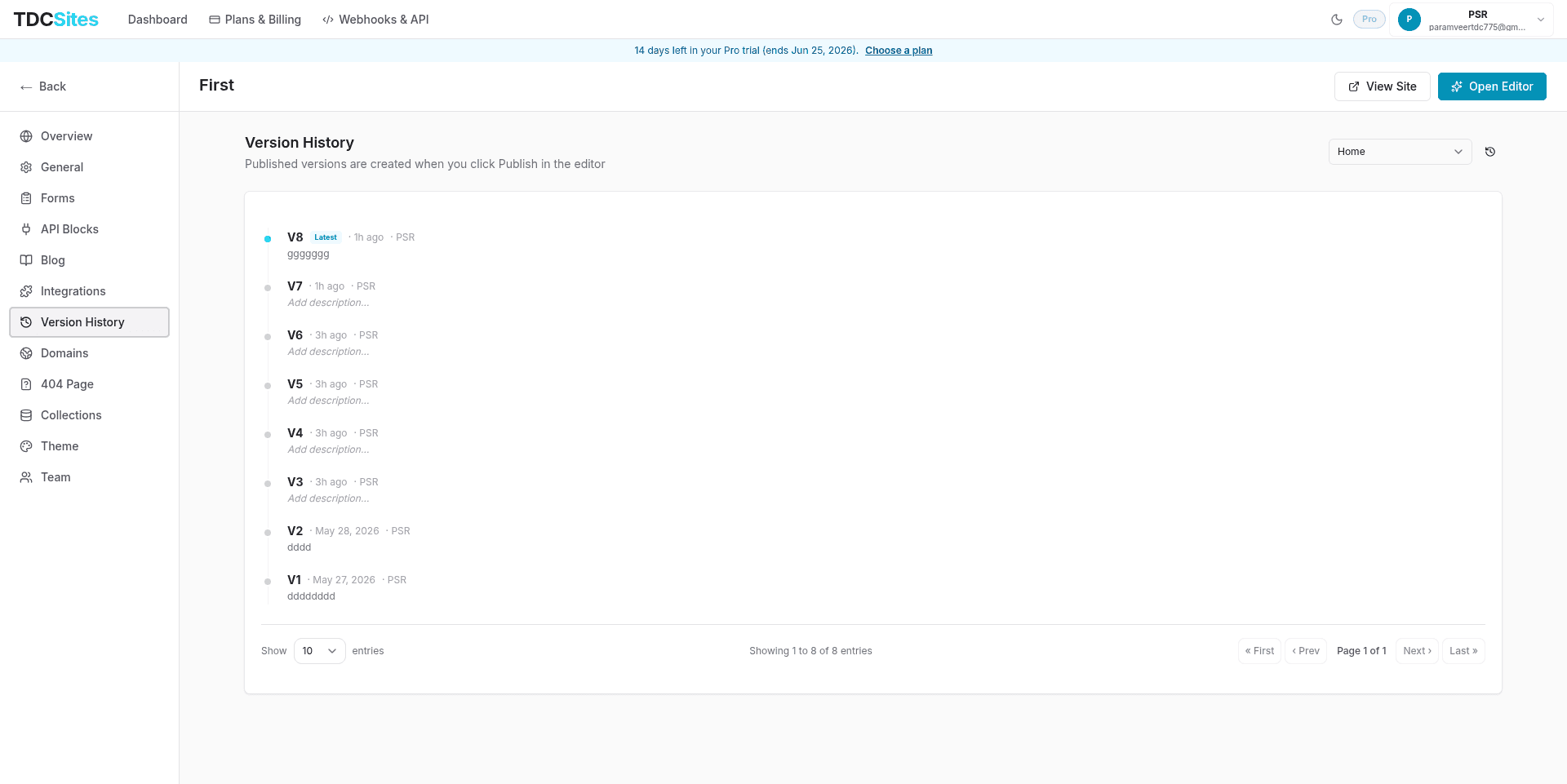
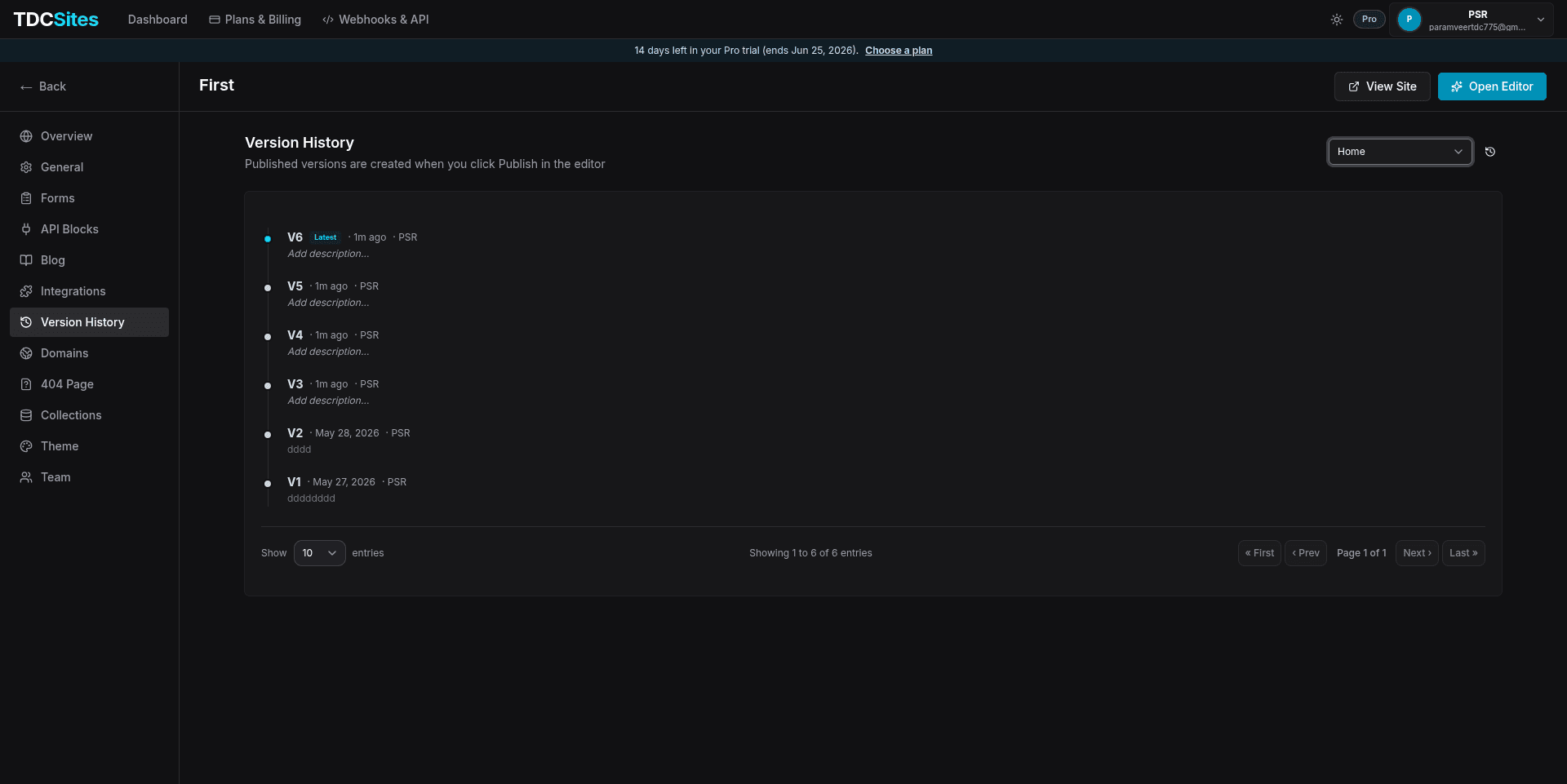
Version History Features
The Version History panel offers several tools to manage your deployments:
- Filter by Page: Use the page selector dropdown to filter version logs specifically for a chosen page (e.g., just the homepage
/or your/aboutpage). - Inline Descriptions: Click the version description area to add, edit, or update description notes inline. This allows you to tag historical versions after publishing.
- Preview Version: Click the Preview button next to any historical snapshot to open a read-only preview in a new browser tab. This lets you inspect past layouts without changing the active live site.
- Restore/Rollback Version: Click Restore to roll back your page to that version.
- Important Warning: To prevent accidental loss of work, the platform automatically saves your current editing draft as a new backup version snapshot before executing the restore.
- Pagination Controls: Adjust the page entries (10, 20, 50, or 100 entries per page) and navigate through version history pages.
Preview Mode (Editor Preview)
Before publishing, you can test your work using the Preview toggle (play icon) in the top toolbar:
- Interactive Testing: Simulates visitor interaction. Links, accordions, form elements, and scroll animations will behave exactly as they will on the live site.
- UI Controls Hidden: Hides the Left and Right sidebars to give you a clean, uncluttered representation of the page layout.
- Theme Previewing: Toggles the dark/light mode toggle in the bottom toolbar to preview how your design responds to user theme selections.
Click Exit Preview in the top toolbar to return to the layout designer.
Real-Time Collaboration
If your plan supports collaboration, team members can edit pages together in real-time.
- Collaborator Indicators: Active team members currently on the page are displayed in the top toolbar. On the canvas, collaborators' selections are outlined with colored borders tagged with their names.
- Real-time Syncing: Canvas updates from team members are synced and applied to your editor window within seconds.
- Automatic Conflict Resolution: In the event that two team members edit the same block at the exact same moment, the system automatically resolves it using a "most recent save wins" rule at the block level.